


Friday, December 18, 2009
post://4672237220726642051/Windows 7 Games Explorer Manual Customization How To
Windows 7 has removed the ability from Games Explorer to Customize out of the box.
It's not impossible to do, however - it just takes some finangling and registry knowledge.
All of your Games Explorer shortcuts are stored here:
%localappdata%\Microsoft\Windows\GameExplorer
If you have games installed you should see several folders with very long names that start with {######...
Each of these is the unique game ID used by Windows to synch the icons and commands that appear in the Games Explorer to the actual EXE that runs the game.
These numbers correspond to the values in the registry here:
HKEY_LOCAL_MACHINE\SOFTWARE\Microsoft\Windows\
CurrentVersion\GameUX\Games
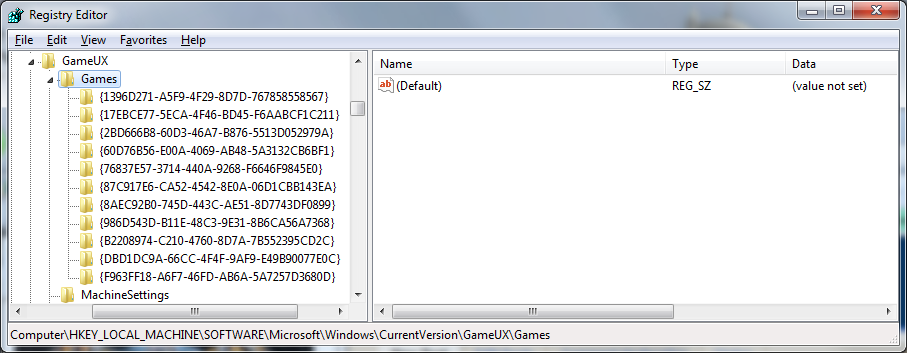
By clicking on one of the IDs in the registry you can figure out which game is which:
IE {1396D271-A5F9-4F29-8D7D-767858558567} is Batman for me.
When I click the ID folder the config options are on the right including the full path so you should be able to find which ID corresponds to which game.


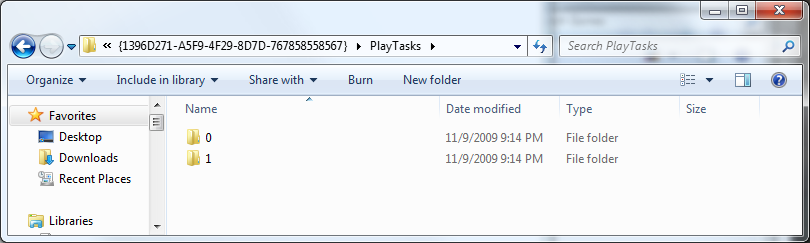
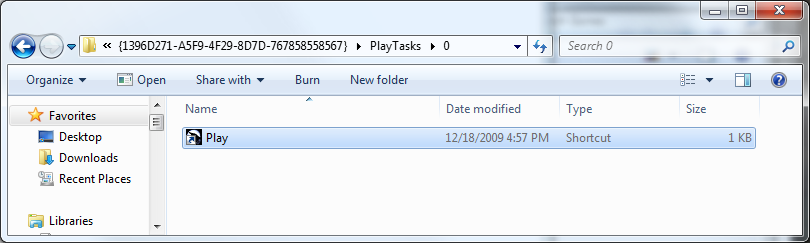
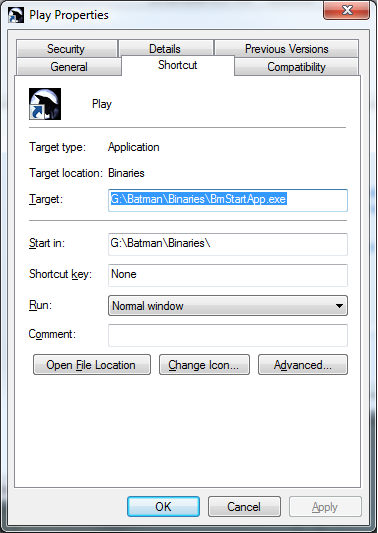
To modify the options for a game like change the path, or even add additional play or right click options, just modify or add a folder within PlayTasks for that game. I believe you are limited to 0 to 5 tasks, but try it. Batman's 0 task is Play and the 1 task is Support. So within PlayTask\0 (default) for Batman is a shortcut named "Play". Right click and choose properties as you would on any other shortcut and modify the files as you need to (run as admin, compatability mode, etc). To create a new play task you could make a folder named "3" and within that place a shortcut named as you'd like it to appear on the context menu.


Finally, you can also modify the box art shown in GamesExplorer or even add box art for games that don't have it by default by modifying the images in the
%localappdata%\Microsoft\Windows\GameExplorer folder.
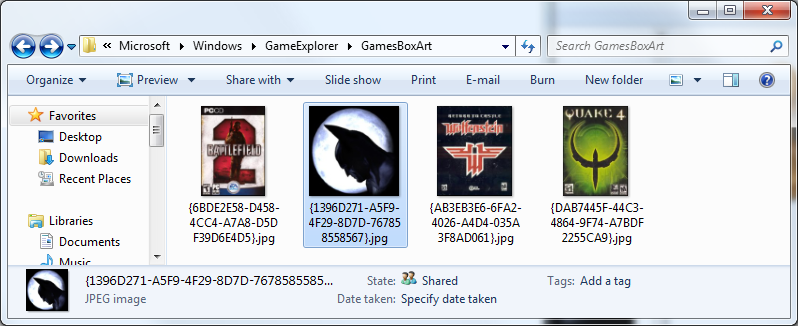
Simply name the file (jpg) with the same ID as the game, voila - you have your game listed with special icon or box art in Games Explorer.
Labels: 2009, games for windows, howto, technology, Windows7
posted @ 16:59
-x-
(0) comments | Post a Comment
Monday, September 14, 2009
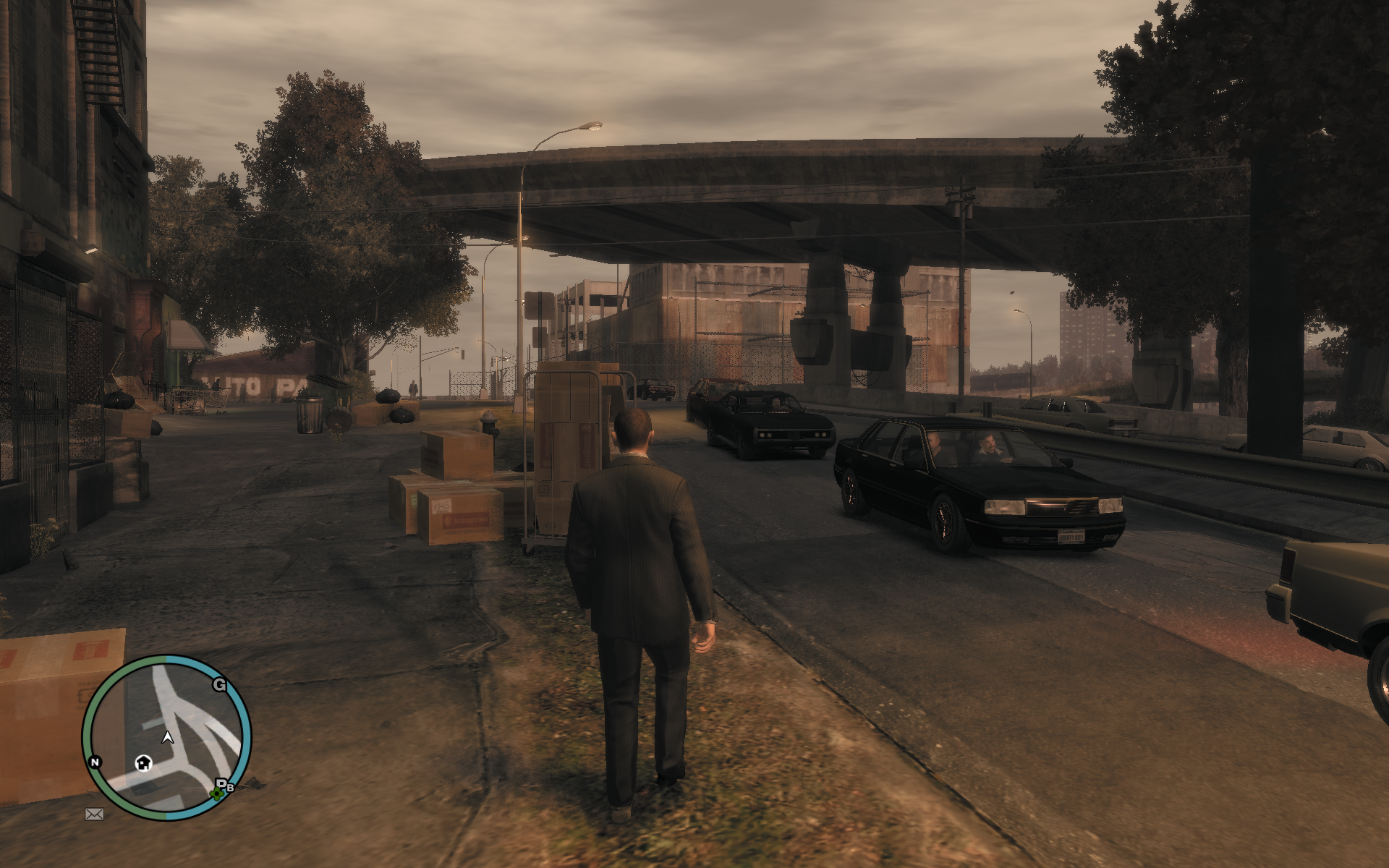
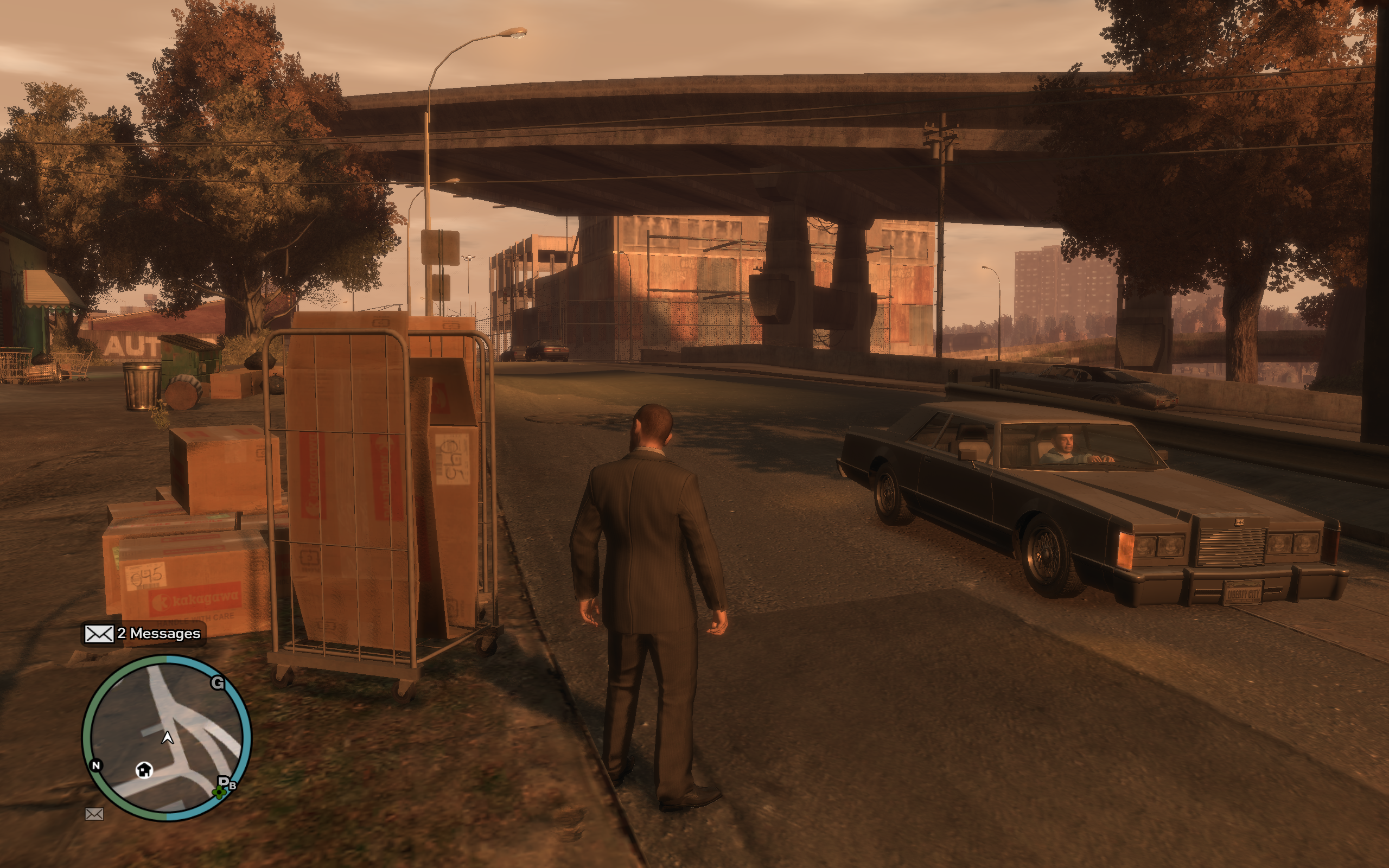
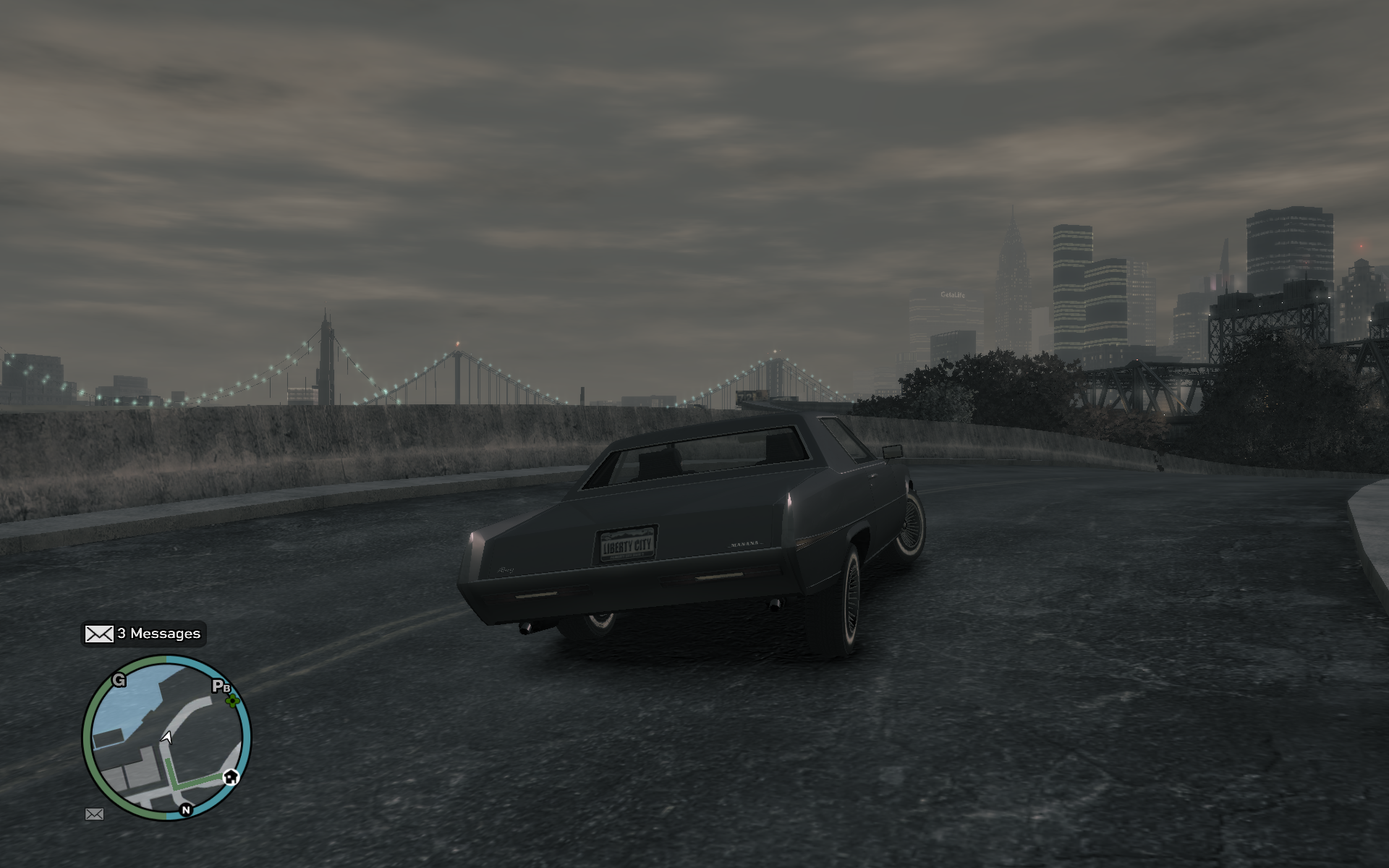
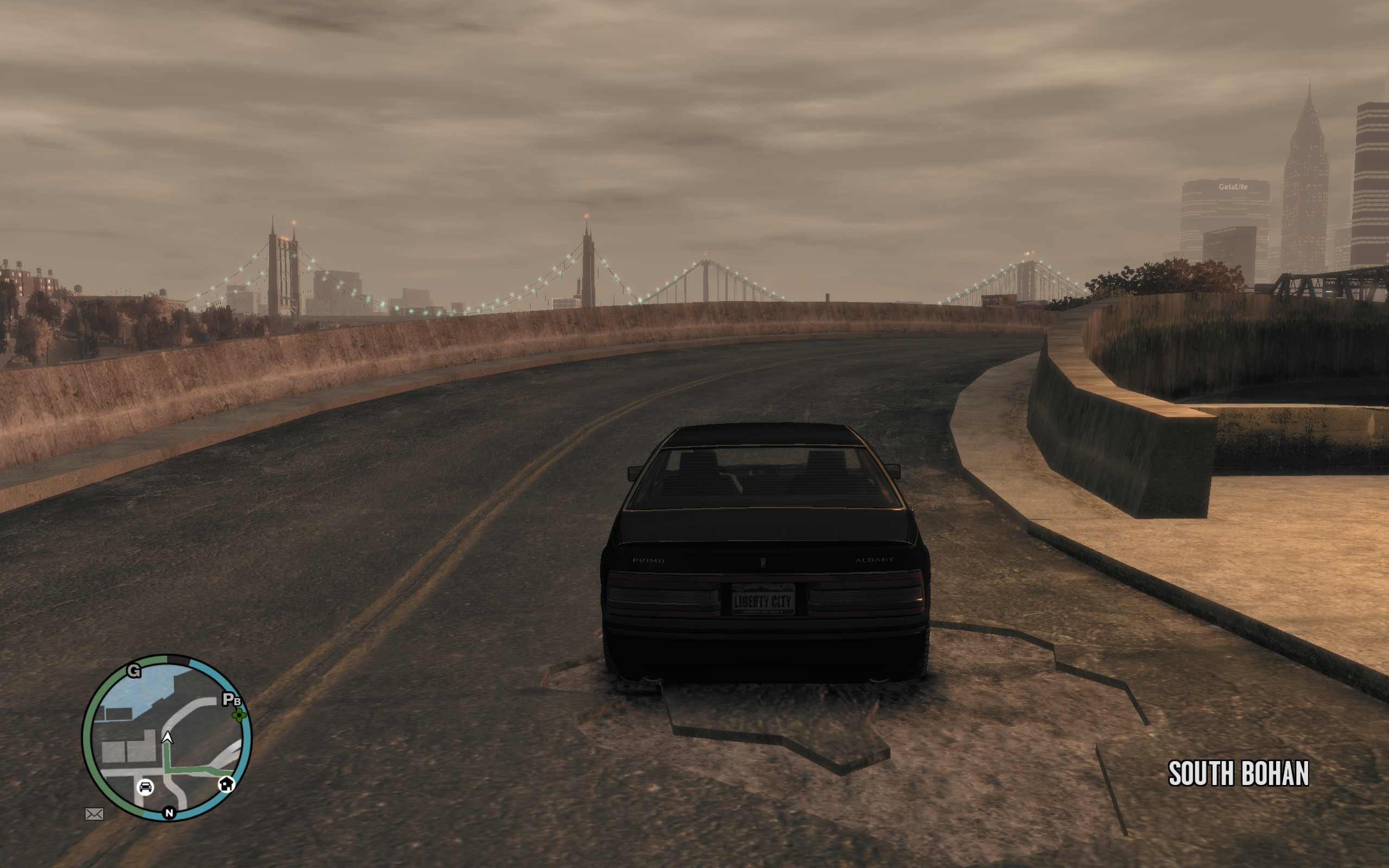
post://2466185940127249611/Here are some pics of GTA before and after.
Both are playable at 40 to 45fps.
Vista is overclocked video chip / mem ~ 745mhz / 1265mhz
Win7 is stock video chip / mem ~ 705mhz / 1215mhz
Vista .5
-----------------------
Vista 1
Win7 1
-----------------------
Vista 2
Win7 2
-----------------------
Vista 3
Win7 3
-----------------------
Vista 4
Win7 4
Labels: 2009, games, games for windows, graphics, screenshot, vista, Windows7
posted @ 14:20
-x-
(0) comments | Post a Comment
Saturday, September 12, 2009
post://2987336471837986745/6 installations later I have a working copy of Windows 7 with valid RAID, SATA, Chipset, Video, and Sound drivers. I was very careful this time, doing only one thing at a time and restarting after a change to confirm. I was a bit more cavileer when I was under the impression my errors could be undone. The restore feature was not able to handle the driver change for vital components so keep that in mind when you're upgrading. Vista had similar problems, I wasn't able to install it until SP1.
My first step once getting SLi working was to test the performace of games. I was able to test a couple DEMOs as is but GTA required a reinstall since it has so many background requirements. All in all I saw HUGE gains visually, everything ran better, something I'm not used to seeing from new (PC) OSs.
To further put this into perspective - in Vista my video cards are overclocked a good 40mhz higher, the video cards are running at stock speeds in Win 7.
Here are the numbers from GTA:
Windows 7 - GTA v1
Average FPS: 40.12
Duration: 37.37 sec
CPU Usage: 74%
System memory usage: 37%
Video memory usage: 50%
Graphics Settings
Video Mode: 2560 x 1600 (60 Hz)
Texture Quality: High
Render Quality: Highest
View Distance: 32
Detail Distance: 70
Windows 7 - GTA updated
Average FPS: 43.98
Duration: 37.45 sec
CPU Usage: 78%
System memory usage: 39%
Video memory usage: 53%
Graphics Settings
Video Mode: 2560 x 1600 (60 Hz)
Texture Quality: High
Texture Filter Quality: High
View Distance: 32
Detail Distance: 70
Vista - GTA updated 1920 x 1200
Average FPS: 37.65
Duration: 37.61 sec
CPU Usage: 81%
System memory usage: 44%
Video memory usage: 57%
Graphics Settings
Video Mode: 1920 x 1200 (60 Hz)
Texture Quality: High
Texture Filter Quality: High
View Distance: 75
Vista - GTA updated 2560 x 1600
Average FPS: 32.02
Duration: 37.72 sec
CPU Usage: 74%
System memory usage: 43%
Video memory usage: 59%
Graphics Settings
Video Mode: 2560 x 1600 (60 Hz)
Texture Quality: High
Texture Filter Quality: Very High
View Distance: 100
Detail Distance: 50
*update* Futuremark Vantage Score: 14100!
Direct Link
Labels: 2009, games, games for windows, RAID, technology, Windows7
posted @ 09:54
-x-
(0) comments | Post a Comment
Thursday, September 10, 2009
post://4541716393206416641/Windows 7 - Don't Rush It.
That's a cautionary statement, a metaphor, and a realization. I had a LOT of issues with this installation and I'm not even at a point where I can benchmark. 3... maybe 4 installations at this point and I think I've finally got it. I put in another HD so I could avoid RAID issues and I still run into them.
My motherboard has 10 SATA ports 4 on one SATA controller, 6 on nVidia SATA RAID. I avoided trying to bring over the RAID right away, instead having a single HD on the ontroller but not actually in RAID mode and STILL ran into issues. 7 even played with my RAID 1 a bit and broke the mirror after I installed the drivers but I really think that's more nVidia since it was completely dependent on their drivers. If nVidia didn't try and break whatever BIOS RAID existed when they installed their Windows software I might have not been impacted, but instead they gave me a minor heart attack by breaking my mirror. I restored it by killing the secondary RAID mirror and reallocating it via a rebuild to the first but dang if it didn't make me fear for my data in the meanwhile. I've lost too much data, finally learned to go mirror vs striping and this is how I am taunted. Whatever - worked out ok in the end after rebuild.
I finally have my nVidia control panel as I remember it, SLi and all. I can finally do some performance testing, and that's what I'm after.
PhysX off the onboard 780a SLI chip
Enabled SLi for the 2 x 285 2G EVGA cards
clicked apply... and... we have liftoff!
A system rating shows they've gone past the 5.9 max rating and I now get 7.9s on everything except the hard drives. However, Windows 7 is not running off my striping array so it's not really expected I'd get the best performance. It's all awaiting my theory of 2 x 120G SSD drives in Striping. I can't think of anything that could be faster. I don't know what that might drive to game performance but if previous experience is any indication - that's a sure cause to make me drop a hard earned dollar.
Labels: 2009, crash, desktop, RAID, review, SLi, technology, Windows7
posted @ 23:20
-x-
(0) comments | Post a Comment






(Almost) Daily Links for your perusal:
Links Updated at 11:38 AM

I had to put all the links here so they could still be robot'd since I was having issues with the whole dual click nature of the modern browsers.
 music recommendations
links
discuss (no longer in service)
...mysterious
pictures
mobile
archive
music recommendations
links
discuss (no longer in service)
...mysterious
pictures
mobile
archive
music recommendations
links
discuss (no longer in service)
...mysterious
pictures
mobile
archive